
Contents
- Start with an image the model does not have to repair
- Write a motion prompt, not a second image description
- Use the first clip as a validation render
- Decide whether to refine, retry, or replace
- Turn acceptable clips into a repeatable workflow Updated October 12, 2026
- Frequently asked questions
A convincing adult AI video usually begins before the Generate button is pressed. The source image must give the model a stable subject, the prompt must describe achievable motion, and the first render must be treated as a diagnostic pass rather than a finished clip.
Playbox AI is an Adults 18+ AI video generator for guided image-to-video creation. This guide explains how to prepare the input, plan the motion, review the output and make focused revisions.
On October 12, 2026, the editor opened the live homepage, fetched the sitemap, and reviewed every published guide listed there. That inspection confirmed the current navigation and editorial positioning, but it was not a hands-on generator test. Generator interfaces, available controls, content categories, durations, and prices should therefore be checked directly in the service selected for the actual render.
Start with an image the model does not have to repair
A source image is not merely inspiration. In image-to-video generation, it establishes the initial composition, subject, lighting, background, and visual style. The motion prompt then tells the model what should change over time.
The Playbox AI workflow begins with one sharply rendered adult subject under even lighting. Its beginner guide recommends cropping closely enough that the face occupies roughly one-third of the frame. This is a practical target rather than a universal specification: a recognizable face gives the model more usable detail than a distant full-body subject, especially when the output is short or low-resolution.
Inspect the image at full size before uploading it anywhere. Look for:
- Soft or asymmetrical facial features
- Fingers hidden behind one another or already distorted
- Hair merging into the background
- Repeated patterns, mirrors, rails, or dense texture behind the subject
- Strong shadows crossing the face or body
- Blur or dust that implies movement in the wrong direction
Existing defects are likely to become more visible once frames are synthesized. Runway’s official image-to-video prompting guide specifically warns that blurry hands or faces in an input image may be intensified during animation.
Hands deserve a deliberate decision. If they are small, overlapping, partly outside the frame, or central to a complicated action, use a different crop or choose an image where they rest against the body or a simple object. Asking the model to invent both fine anatomy and rapid motion creates two failure points at once.
The background should also support the intended movement. A plain wall, broad tonal gradient, or softly blurred room is easier to keep stable than foliage, patterned fabric, crowds, or reflective surfaces. When the background matters to the scene, preserve it—but reduce unnecessary subject and camera motion during the first attempt.
Write a motion prompt, not a second image description
Once an image supplies the appearance, the prompt should concentrate on time: what the subject does, how quickly it happens, what the camera does, and how the shot ends.
A useful structure is:
Subject action + pace + camera behavior + continuity condition
For example:
The subject slowly turns toward the camera and gives a subtle smile. Hair moves gently. The camera makes a very slow push forward. Continuous shot with steady lighting.
This prompt separates restrained subject movement from camera movement. It also avoids retelling clothing, room, body shape, or other visual information already present in the image. Repeating those details can introduce contradictions without improving the motion.
Start with one essential action. Adobe’s official guidance, updated June 9, 2026, recommends identifying the shot type, character action, location, and aesthetic while refining prompts incrementally; its video prompt guidance also covers pacing and camera direction. For image-to-video work, however, only add visual descriptors when the model genuinely needs information not supplied by the source frame.
Avoid combining several demanding instructions in the first pass. A prompt that requests a turn, a hand gesture, flowing hair, a major expression change, a rotating camera, and a background transition makes diagnosis difficult. If the result fails, there is no clean way to identify which instruction caused it.
Image cues and written cues must agree. Runway documents a useful case in which a prompt called for a parked car to remain motionless, but the source image contained dust clouds and motion blur. Removing those contradictory cues produced the intended behavior with the same prompt. The lesson applies broadly: when the video ignores an instruction, inspect the source before adding more words.
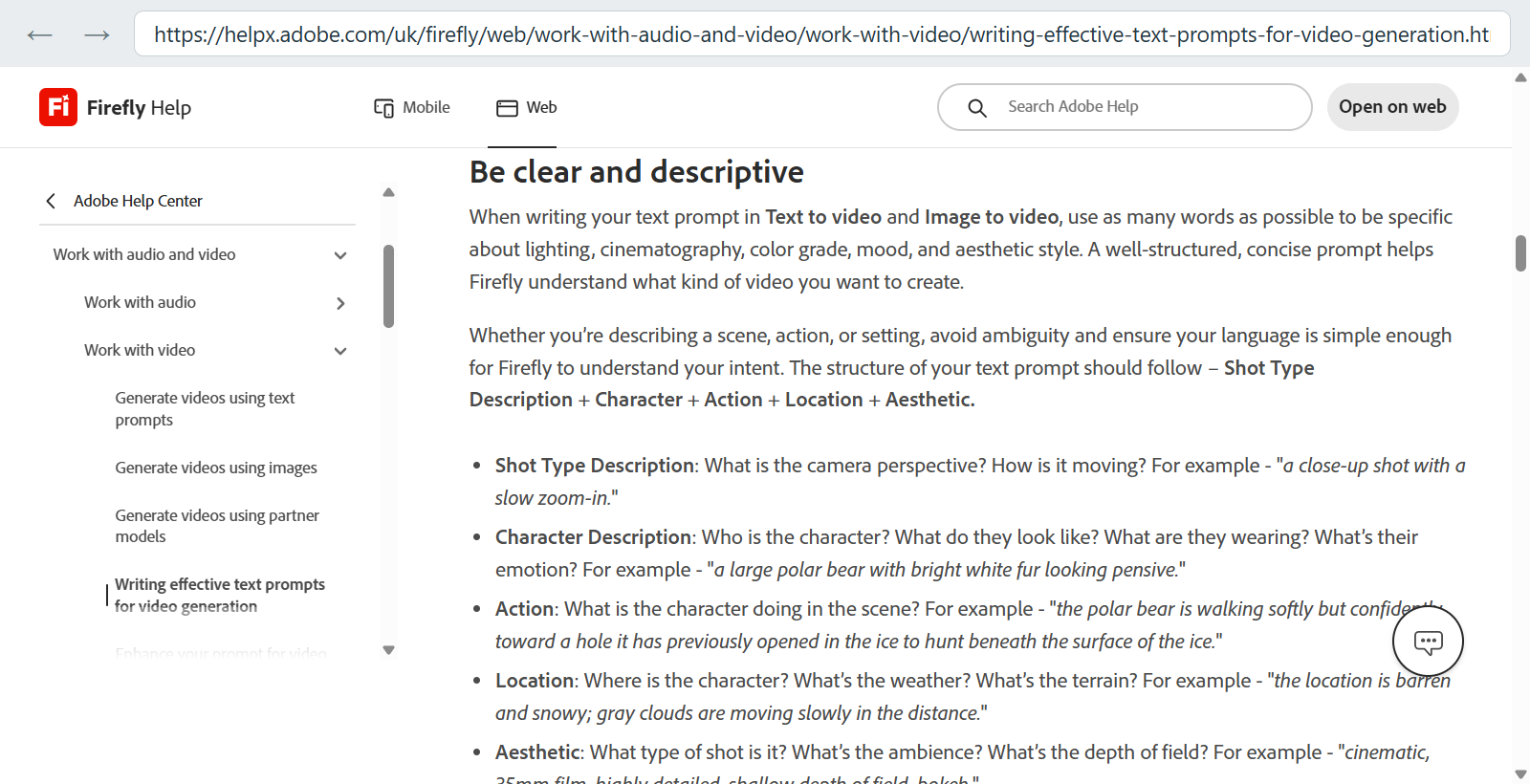
Adobe’s general video-prompt framework provides a useful checklist; in image-to-video prompts, prioritize motion and camera direction when the source frame already supplies the visual details.
Use the first clip as a validation render
Choose the shortest or least expensive available render for the first attempt, where Playbox AI offers that choice. Select restrained motion—such as an idle pose, slight expression change, or slow camera push—before trying a more ambitious sequence.
This first clip answers a narrow question: does the system read the source image correctly?
Watch it several times with a different focus on each pass:
- Overall read: Does the clip communicate the intended action without an abrupt cut or unexplained transformation?
- Identity and anatomy: Does the face remain recognizable? Do hands, limbs, and body proportions stay coherent?
- Environment: Does the background remain fixed where it should, or does fine detail boil and crawl?
- Motion: Are movements smooth, or do frames smear, snap, or briefly reverse direction?
- Light and color: Do skin tones, clothing colors, and illumination remain consistent from beginning to end?
This review is more dependable than relying on whether the clip feels impressive at first glance. The 2024 VBench research evaluated generated video across 16 distinct dimensions, including subject consistency, background consistency, temporal flicker, motion smoothness, imaging quality, human action, and prompt consistency. A personal review does not reproduce that benchmark, but the categories provide a useful reminder that a clip can succeed in one dimension while failing in another.
For example, a face may remain stable while the wall behind it pulses. A visually smooth clip may ignore the requested action. A correct action may still be unusable because color changes halfway through. Record these as separate observations instead of giving the entire output a vague pass-or-fail rating.
Decide whether to refine, retry, or replace
The location of the defect determines the next move.
| What you observe | Likely cause | Best next action |
|---|---|---|
| Correct subject, but motion is too strong | Prompt or motion preset asks for too much | Reduce speed, distance, or the number of actions |
| Face drifts during a turn | Face is too small, light changes, or rotation is excessive | Crop tighter and request a smaller turn |
| Hands fuse or multiply | Unclear source anatomy plus hand movement | Reframe to exclude the hands or use a resting pose |
| Background shimmers | Too much fine detail or camera displacement | Simplify the background or keep the camera steadier |
| Motion contradicts the prompt | Source contains competing directional cues | Edit or replace the image before rewriting the prompt |
| Result is coherent but misses one instruction | Prompt is ambiguous or overly broad | Refine the wording while keeping the source unchanged |
| Several unrelated defects appear | Source–motion pairing is unstable | Replace the source or choose a lower-magnitude motion |
Refine when the source remains stable and the problem is localized. If the subject moves too quickly, change “turns toward the camera” to “slowly turns her head a few degrees toward the camera.” If camera movement overwhelms the subject action, remove the camera instruction for one pass.
Retry unchanged only when the service is known to produce meaningful variation and the first output is close enough to keep. Repeating a generation with a blurred face, ambiguous hands, or contradictory motion cues merely asks the model to solve the same input problem again.
Replace or recrop the source when defects appear at the first frame, identity repeatedly drifts, or the background destabilizes across different prompts. Two failures from the same source-and-motion pairing are usually more informative than a long run of hopeful regenerations.
Turn acceptable clips into a repeatable workflow
Once a combination works, preserve the conditions that produced it. Keep two or three reliable source setups with similar distance, lighting, and background. Change one variable at a time so the next result remains interpretable.
Use filenames that capture the source, motion choice, attempt number, and verdict, such as:
portrait-windowlight_slow-turn_a03_keep.mp4
A simple log can add the prompt, duration, observed defect, correction, and final decision. Over several sessions, this reveals whether a particular crop consistently protects facial identity or whether one camera instruction repeatedly destabilizes the background.
The goal is not to eliminate every variation. It is to distinguish productive variation from preventable failure. Preserve stable inputs, simplify motion before escalating it, and spend additional renders only after the validation clip proves that the model understands the source.
For deeper walkthroughs on first renders, artefact correction, and repeatable source setups, continue through the verified Playbox AI guides. Used this way, Playbox AI functions as a practical editorial companion: prepare the frame, describe one achievable movement, inspect the result by category, and change the input that actually caused the problem.
Frequently asked questions
What should a motion prompt contain?
One essential action, its pace, the camera behaviour and a continuity condition, for example "slowly turns a few degrees toward the camera, very slow push forward, steady lighting". It should not repeat details already visible in the source image, such as clothing or the room.
How long should the first render be?
Use the shortest or least expensive option the product offers. The first clip is a validation render: its job is to show whether the system reads your source correctly, not to be the finished result.
Why does the video ignore part of my prompt?
Often because the source image contains cues that point the other way, such as motion blur, dust or a pose that implies different movement. Inspect the first frame before adding more words, and edit or replace the source if it contradicts the prompt.
Should I retry unchanged if the clip is almost right?
Only when the first output is close and the service genuinely produces variation between runs. If the problem is a blurred face, ambiguous hands or contradictory cues, an unchanged retry asks the model to solve the same input problem again.
How many good results do I need before I trust a combination?
Two passes from the same source-and-template pairing are a more useful signal than one lucky result. The workflow guide explains how to log results and promote or retire pairings.
Where can I read more?
Start with the first-clip walkthrough, then see how to choose between templates and custom prompts and how to fix the five common artefacts.